Advantage+ creative enhancements in Meta Ads: what they do and how to turn them off
By Matheus Mello, founder of Ads Editor and owner of YEP Agência · Published · Updated · 9 min read
Advantage+ creative enhancements let Meta change your ad after you approve it: a different crop, text over the image, a new background or music you never chose. For an agency, that means a client can see a version nobody signed off on. This guide shows what each enhancement changes, when to turn it off and how to do it on many ads at once.
Try bulk publishingQuick answer
To turn off Advantage+ creative enhancements, edit the ad in Meta Ads Manager, open the Advantage+ creative section and switch off each change you do not want, then check the music setting. Doing that ad by ad is slow; Ads Editor turns them off on selected ads in bulk, and its bulk publishing creates new ads with them off.
Summary
- Advantage+ enhancements can change your ad's copy, crop, background, music and other elements after you approve it.
- Turning them off protects client-approved creative and keeps creative tests clean; it does not guarantee better results.
- In Meta Ads Manager the setting is per ad. Ads Editor turns it off on many selected ads in one action, and through its MCP you can ask for the same thing in a chat with an AI assistant.
- New ads created through Ads Editor's bulk publishing have enhancements off by default. Music and ads with multiple messaging destinations still need a manual check.
In this article · 8 sections
What are Advantage+ creative enhancements?
Advantage+ creative enhancements are options that let Meta adapt your ad automatically to try to improve results. Meta may change the crop, adjust colors, rearrange text, add elements to the image or create variations with AI.
For a media buyer, the practical point is simple: people may see a different version of the creative you approved. That can help some campaigns, but it gets in the way when the brand, the offer or the test needs tight control.
Creative enhancements are only one part of Meta's automation
This guide covers the options that change the creative. Turning them off does not disable Meta's audience, budget or placement automation, and it is different from turning off an Advantage+ campaign.
What can Meta change in your ad?
Names and available options vary by account, format and Ads Manager updates. Instead of memorizing every name, check what each option does to your creative:
| Enhancement | What may change | What to check |
|---|---|---|
| Crop and size | The image or video is cropped or adapted to fit other placements. | Are the logo, price, captions and faces still fully visible? |
| Brightness, contrast and color | The appearance of the image or video is adjusted. | Does the product color still match what the customer will receive? |
| Ad copy and call to action | Headlines and descriptions may appear in a different order or combination. | Are the offer, price, deadline and conditions still clear? |
| Text and stickers over the design | Extra elements may appear on top of the image. | Do they cover information or clash with the brand's visual identity? |
| AI expansion, backgrounds and animation | Meta may fill empty space, replace the background or animate an image. | Does the creative still accurately represent the product and approved material? |
| Comments and extra information | The ad may highlight comments or additional details. | Does the highlight support the offer and make sense for the sale? |
| Translations | Text or speech may appear in another language. | Does the translation preserve the message and suit the audience? |
| Automatic music | A soundtrack may be added to the ad. | Does the music suit the creative without getting in the way of speech? |
When should you turn enhancements off?
Turn them off whenever an ad has to run exactly as approved. It is the simplest way to stop a version you never reviewed from going live.
- Client-approved creative: preserve the wording, colors and elements the client signed off on.
- Offers with a price, deadline or conditions: avoid a layout that highlights the benefit while hiding an important detail.
- Product ads: check that the color, appearance and setting stay true to the product being sold.
- Testimonials: preserve the original recording and message, especially speech, captions and the speaker's identity.
- Creative tests: if you want to compare two hooks or designs, remove automatic changes that could interfere with the comparison.
An example in a creative test
You want to compare an image with a price against one without a price. If an enhancement adds text to the second image, you are no longer comparing the two versions you prepared. Turning those changes off keeps the comparison honest.
If you keep an enhancement on, test it with a clear goal and judge it by cost per result, lead quality or sales, depending on the campaign. Turning everything off does not guarantee more conversions; the immediate benefit is control over what goes live. See how to test Meta Ads creatives.
How do you turn enhancements off in Meta Ads Manager?
- Open Ads Manager and edit the ad you want to change.
- In the creative part of the ad, find the Advantage+ creative enhancements section. Its name may vary in your account.
- Open the list of options and turn off each change you do not want. Look for automatic music as well.
- Review the Feed, Stories and Reels previews to check copy, crop and design elements.
- Save and publish. Repeat for every other ad that needs the same setting.
For a few ads, doing it by hand is fine. Across several campaigns and dozens of creatives, the same four clicks repeat on every ad: open, review, turn off, save. That is where bulk editing pays off. The Advantage+ audience and placements also switch off in bulk, at the ad set level: see how to turn off Advantage+ audience in bulk.
How do you disable creative enhancements in bulk with Ads Editor?
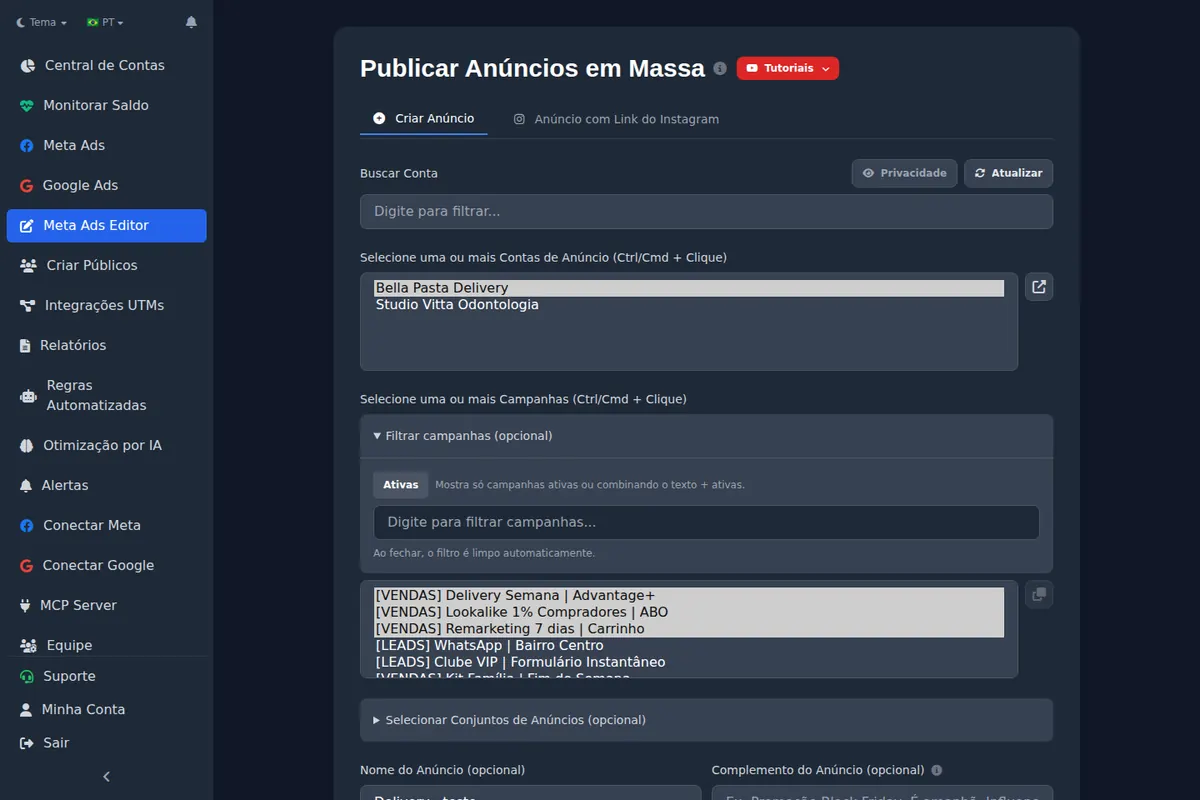
In Ads Editor, you select many ads and turn off creative enhancements in one operation, without opening each ad in Meta Ads Manager.
- Open the Meta Ads manager inside Ads Editor and choose the account.
- Select the ads you want to update.
- Open bulk editing and choose Turn off Advantage+.
- Review your selection, apply the change and check the results.
It also works on a single ad. The change applies only to the ads you selected; it does not lock the setting for the whole account, so ads published outside this workflow still need to be checked.
Can you ask an AI assistant to make the change through Ads Editor's MCP?
Yes. Ads Editor's MCP connects your Ads Editor account to an AI assistant such as Claude or ChatGPT. Once connected, you ask for the change in plain language, without having to learn any commands.
Example request for your AI assistant
"Disable automatic creative enhancements on the active ads in client X's account. Show me the ads you found before applying the change, then show me the results when it finishes."
You can limit the request to one campaign or a list of ads. In larger accounts the task may continue in the background or run in several batches. Wait for it to finish and review which ads were updated, which are pending and which returned an error.
Are enhancements already off on new ads published through Ads Editor?
Yes. Ads created through Ads Editor's bulk publishing are submitted with creative enhancements off by default, so nobody has to remember to uncheck the same options on every new ad.
That matters most when you publish many variations, work with client-approved assets or run creative tests. Prepare the creatives and publish with that default. See how to upload Meta ads in bulk.
What to check in other formats
Ads with multiple messaging destinations, such as Messenger and WhatsApp together, may follow Meta's defaults and need review. Check automatic music separately in Ads Manager. Duplicated ads and existing posts also need their own review: the default described here applies to new ads created through bulk publishing.
In Google Ads, the similar decision is about recommendations, some of which can be applied automatically; which to accept and which to dismiss is covered in Google Ads recommendations.
What routine keeps your creatives under control?
- Agree on the default with the client: should the ad run exactly as approved, or are automatic variations allowed?
- Review active ads: disable enhancements in bulk where the original creative needs to stay intact.
- Standardize future publishing: upload new ads through Ads Editor's bulk publishing, with enhancements off by default.
- Check the exceptions: review music and ads with multiple messaging destinations.
- Review changes made outside the workflow: regularly check ads created or edited directly in Meta.
Frequently asked questions
Are Advantage+ creative enhancements the same as Advantage+ campaigns?
No. Creative enhancements change how the copy, image or video is presented. Advantage+ campaigns involve other automation choices. Turning off creative enhancements does not turn off audience, budget or placement automation.
Can I disable enhancements on several ads at once?
Yes. In Ads Editor, select the ads and choose Turn off Advantage+ in bulk editing. Through the MCP, you can also ask your AI assistant to do it for an account or campaign. Check the results to confirm which selected ads were processed.
Do new Ads Editor ads have enhancements off by default?
Yes, for bulk publishing. Ads with multiple messaging destinations need review, and automatic music should be checked separately. Later edits in Meta Ads Manager can also change the settings.
Does turning enhancements off improve campaign performance?
There is no guarantee of better performance. The benefit is control over how the creative appears. Compare results in a test and judge by the metric that matters for the campaign.
How do I turn off automatic music?
Edit the ad in Meta Ads Manager, find the music option and turn off automatic music. Check the preview to confirm the soundtrack is gone. Review this separately from the other creative enhancements.
Glossary
- Creative
- The image or video and copy that make up an ad.
- Placement
- The space where an ad appears, such as Feed, Stories or Reels.
- Advantage+ creative enhancements
- Automatic changes Meta can apply to how an ad's copy, image or video appears.
- Ads Editor MCP
- A connection that lets you ask an AI assistant, such as Claude or ChatGPT, to run Ads Editor actions in plain language.
References
- Meta: Reels ads and creative adaptation. Supports: Meta describes format adaptation, image expansion and music options for Reels ads.
The claim supported by each source is shown above.
About the author
Matheus Mello, founder of Ads Editor and owner of YEP Agência. Runs client ad accounts at YEP Agência and built Ads Editor so his own agency could stop publishing ads one at a time. Usage numbers quoted on the blog come from the product activity log. Instagram: @theusm