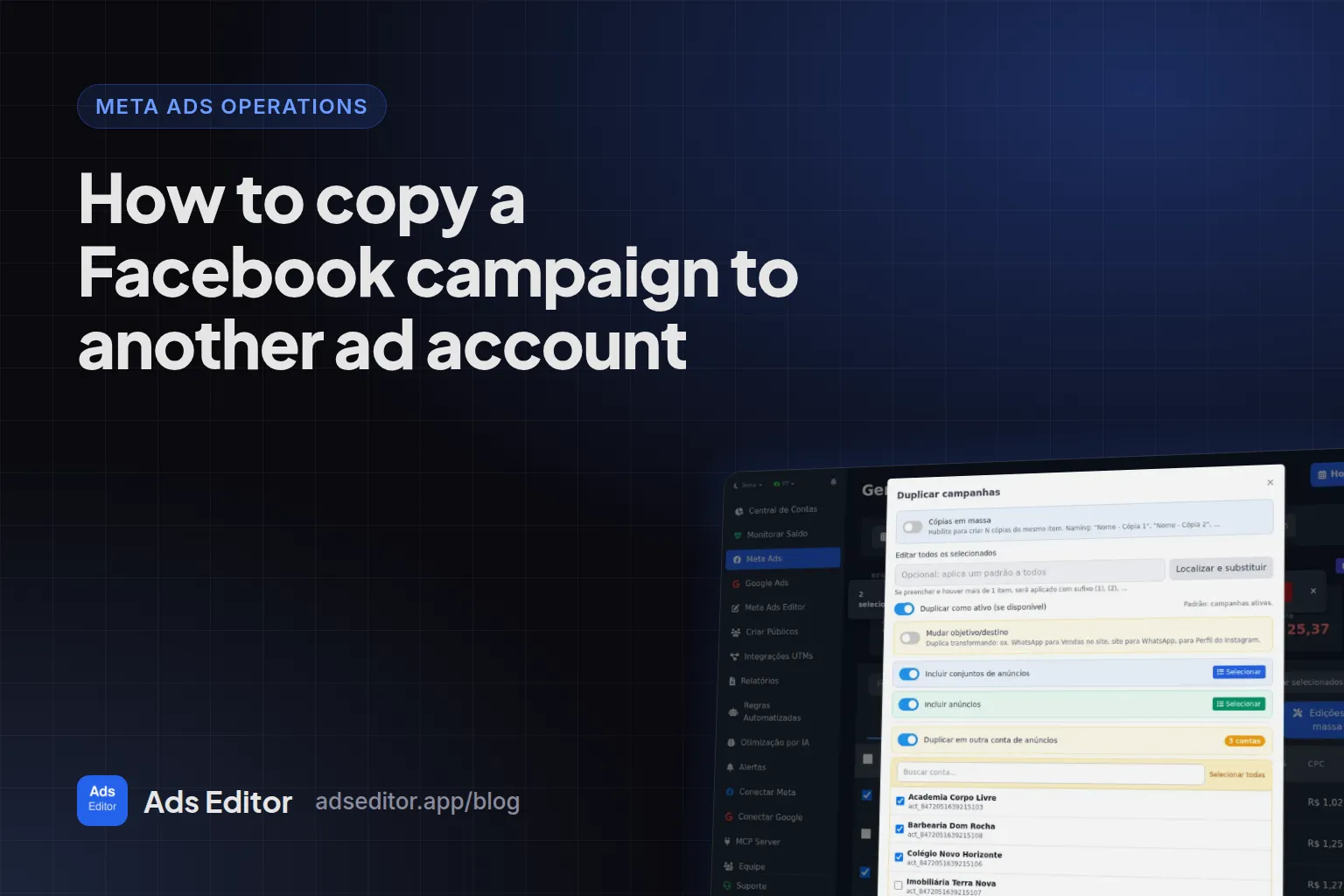
How to copy one Facebook campaign to multiple ad accounts at once
By Matheus Mello, founder of Ads Editor and owner of YEP Agência · Published · 7 min read
To copy one Facebook campaign to multiple ad accounts, Meta gives you a loop, not a button: export the campaign once, then edit and import the file into each account, one at a time. With 10 client accounts that is 10 rounds of swapping Page, pixel and audiences by hand. Here is the native loop, what each destination needs, and the one-action route.
Copy my first campaignQuick answer
Meta has no button to copy one campaign into several ad accounts. Natively, you export it once and import it into each account, swapping Page, Instagram, pixel and audiences every time. In Ads Editor, Duplicate to another ad account takes one or more destination accounts in a single action, with Page, Instagram and pixel set per account.
Summary
- Ads Manager imports into one ad account at a time, so a template campaign for 10 clients means 10 import rounds.
- Every destination needs its own Page, Instagram account, pixel and audiences; none of them exist there with the source IDs.
- Ads Editor sends the copy to one or more destination accounts in one action, with Select all for the whole list.
- Page, Instagram and pixel are configured per destination account, and a missing pixel stops that copy with the reason on screen.
- Learning, delivery history and custom audiences are never copied: plan a fresh learning phase in each account.
In this article · 6 sections
Can Meta copy a campaign to several ad accounts at once?
No. Ads Manager has no copy to another account button, let alone to many.
The native path is the spreadsheet: export the campaign from the source account and use Import ads in bulk in the destination. Each import lands in the account that is open, so the loop repeats once per account. The single-account version, with every column to clear, is in how to copy a Facebook campaign to another ad account.
How does the native loop work for multiple accounts?
- Export once. In the source account, select the campaign and export the selected items. Clear the Campaign ID, Ad Set ID and Ad ID values and keep the headers.
- Save a base file. This is your template. Keep a copy untouched, because every account needs different IDs.
- Edit for account 1. Replace Page ID, Instagram account, pixel and custom audiences with the ones that exist in that account.
- Switch to account 1 and import. Importing while another account is open is the classic mistake.
- Review errors and warnings. Errors block a row; warnings let it through.
- Repeat steps 3 to 5 for account 2, 3 and so on.
| Step | Per account (estimate) | 10 accounts (estimate) |
|---|---|---|
| Swap Page, Instagram, pixel and audience IDs in the file | 5 to 10 min | 50 to 100 min |
| Switch account and import | 2 to 3 min | 20 to 30 min |
| Fix errors and review ad sets | 5 to 10 min | 50 to 100 min |
| Total | 12 to 23 min | 2 to 4 hours |
The time is not the worst part. The worst part is the silent mistake: an ID that was not swapped in account 7 and a campaign that spends on another client's Page or optimizes for a pixel from a different website.
How do you copy a campaign to multiple ad accounts in Ads Editor?
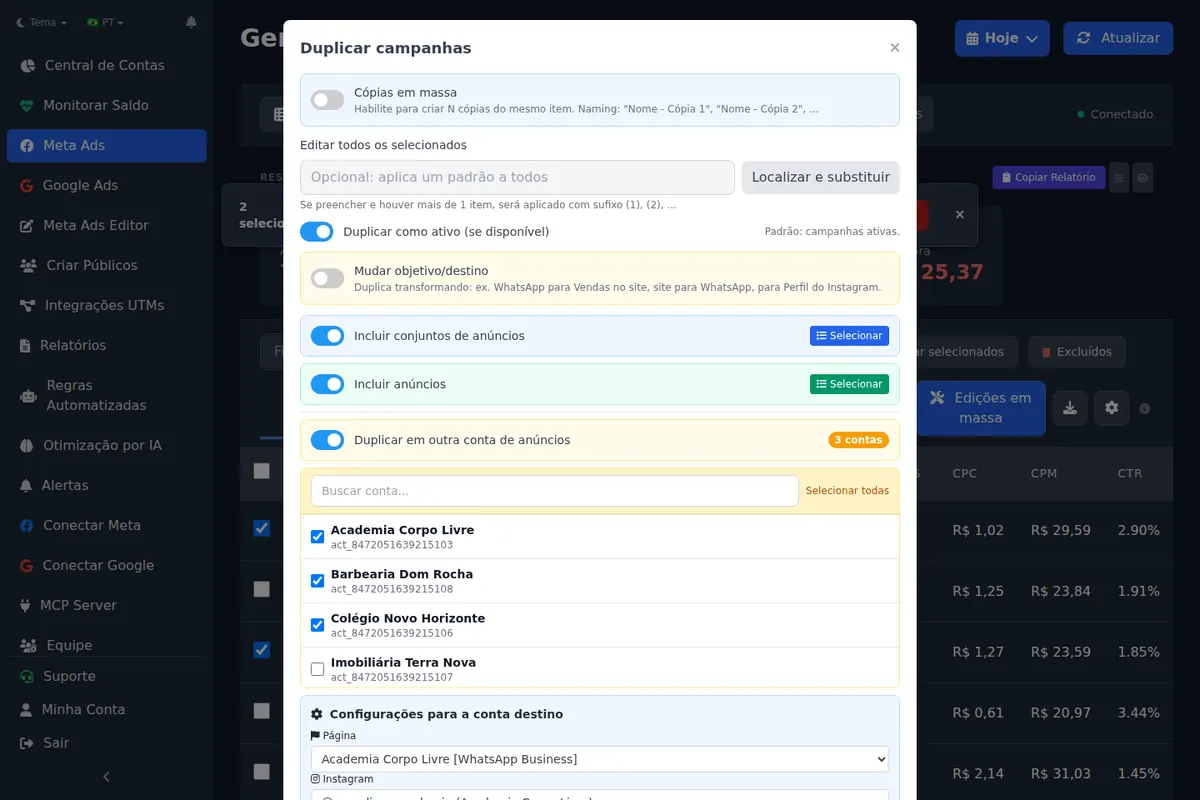
- In Meta Ads, click Bulk Edit, check the template campaign and click Duplicate in the action bar.
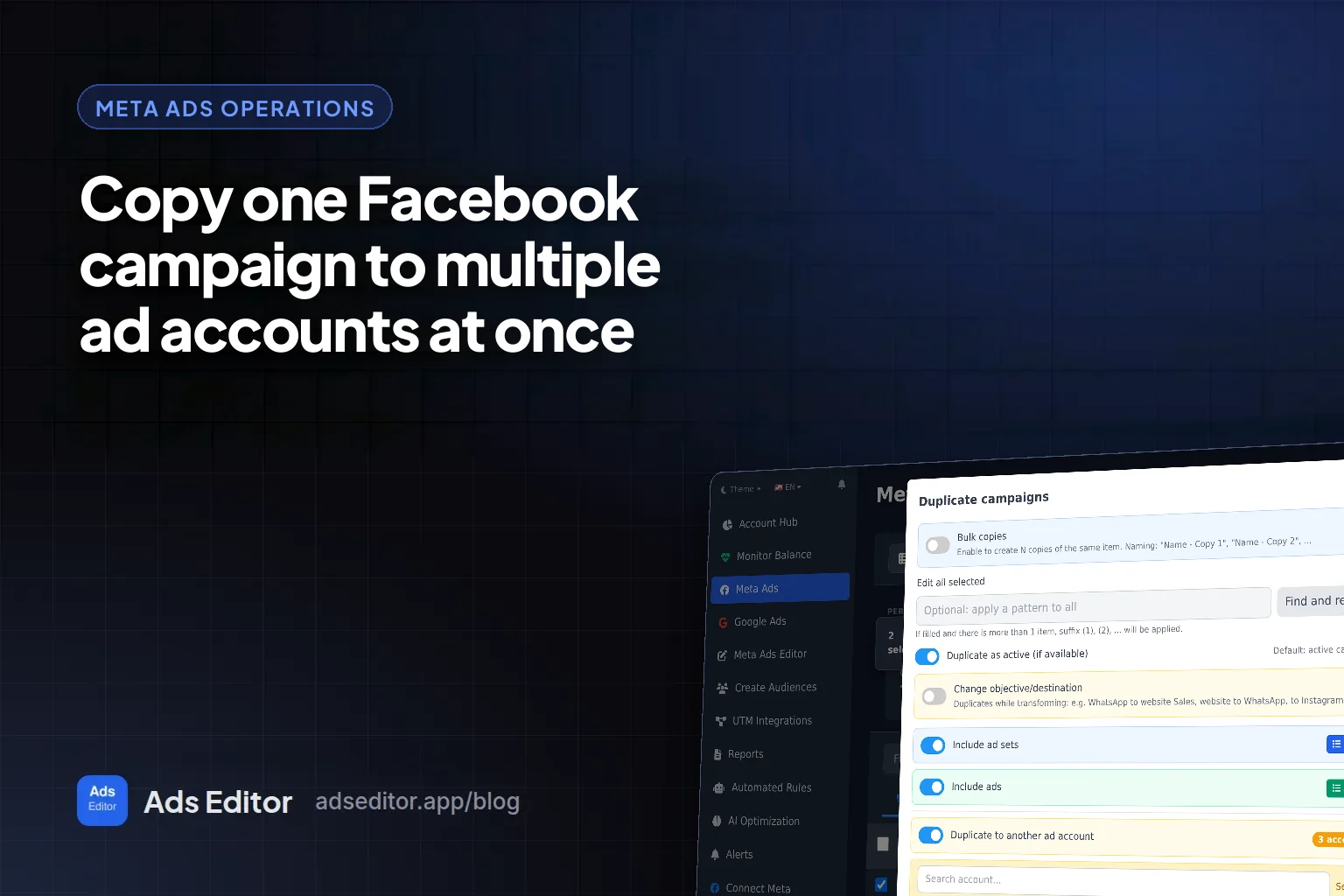
- Turn on Duplicate to another ad account. Search and check one or more destination accounts, or click Select all to check the whole list.
- Under Settings for the destination account, review the Page, the Instagram account and, for website conversion campaigns, the Pixel of each account. Ads Editor suggests the destination's own; Keep the same as the source keeps the originals where the destination has access to them.
- Rename the copy if you want. It ends in Copy by default.
- Confirm. The card in the corner of the screen ends in Completed once for each destination account.
Which accounts show up
Any ad account available to the Meta profile you connected can be a destination, or the accounts shared with you if you are a team member. How many accounts you can manage depends on your plan, and that limit is enforced on the server, not only on screen.
What do you need to set in each destination account?
| Item | Why it matters | If it is missing |
|---|---|---|
| Facebook Page | Ads run under a Page the destination account can use | The ads are not created; pick a Page of the destination account |
| Instagram account | The ad account must be allowed to use it | Meta can return #1815199 |
| Pixel | Website conversion campaigns optimize for a pixel in that account | The copy fails and the card shows why; create or share a pixel and copy again |
| Custom audiences | They belong to the source account | Ads Editor looks for an audience with the same name in the destination and flags any it cannot find |
To make the audience match work for every client, create the same audiences with the same names in each account first. Creating custom audiences in bulk does that across many accounts in one action.
What should you do with the template's ads?
If the template carries creatives from one client, leave those ads out of the copy (under Select, uncheck the ads) and upload each client's creatives afterwards with the Meta Ads Editor. The campaign and ad set structure, targeting and budget logic are what you are really reusing. Then adjust budget and location per account.
What goes wrong when copying to many accounts?
| Symptom | Likely cause | Fix |
|---|---|---|
| One account failed for lack of a pixel | Website conversion campaign and no pixel in that account | Create or share a pixel with the account and duplicate again to that account only |
| Ads were not created in one account | That account cannot use the chosen Page or Instagram account | Pick a Page of that account and duplicate the ads with Duplicate into another ad set |
| An account is missing from the destination list | It is disabled on Meta or was not shared with you | Check it in Meta Ads Manager or ask the owner for access under Team |
| Ad sets copied without their audience | No audience with the same name in that account | Create the audience there and edit the flagged ad sets |
The weekly routine around many client accounts is in how to manage multiple Facebook ad accounts. If the copy should keep the original post with its likes, see copy a Facebook ad to another account and keep the likes.
Frequently asked questions
Is there a limit on how many accounts I can copy to?
In Ads Editor the limit is the number of ad accounts your plan allows. Within that, Duplicate to another ad account accepts one or more destinations, and Select all checks the whole list.
Are custom audiences copied to each account?
No. Audiences belong to the source account. Ads Editor looks for an audience with the same name in each destination and flags the ad sets where it finds none.
Does each copy keep the learning phase?
No. Each copy is a new campaign with new IDs and no delivery history, so every account starts its own learning phase.
Can the destination accounts be in different Business Managers?
Yes, as long as your connected Meta profile can open each account. The Page, pixel and audiences still have to exist in, or be shared with, each destination.
What happens if one account fails?
The card follows the copy in each destination account separately and shows why one failed. Fix that cause, such as a missing pixel, and duplicate again to that account only.
Glossary
- Template campaign
- A campaign built once to be replicated in several client accounts, with structure, targeting and budget logic already set.
- Destination account
- The ad account that receives the copy. Page, Instagram account, pixel and audiences must be valid in it.
- Import ads in bulk
- Ads Manager's spreadsheet import. It writes into the ad account that is open when you import.
References
- Migrate Meta ads between ad accounts (Victor Serban). Supports: Native steps: export to a spreadsheet, clear Campaign ID, Ad set ID and Ad ID, and switch to the target account before importing.
- Ads Editor Help Center: duplicate a campaign to another account. Supports: One or more destination accounts, Select all, Page, Instagram and Pixel per destination, failure without a pixel shown on the card, and one Completed per account.
The claim supported by each source is shown above.
About the author
Matheus Mello, founder of Ads Editor and owner of YEP Agência. Runs client ad accounts at YEP Agência and built Ads Editor so his own agency could stop publishing ads one at a time. Usage numbers quoted on the blog come from the product activity log. Instagram: @theusm